One task per guide, a few steps each. Stuck? Ask us in the support chat. (The app is in Chinese today; button names below are translated.)
Getting started
Send us these three things and you can start the same day:
Gear list: name, quantity and day rate; serial numbers for the valuable items (a spreadsheet or a photo of a handwritten list is fine). Note which batteries and cards go with each camera — we'll set them up as default accessories.
Customer list: name and phone; mark partners, students and annual clients.
Staff phone numbers: everyone gets their own account and signs in with their phone number, setting a password the first time.
Orders from before you started can be back-filled one by one (Orders → ⋯ → Back-fill), and they still reconcile.
On your phone
No app to download — open your store's address in the browser. Add it to your home screen and it opens like an app, with job and due-date alerts.
iPhone: open it in Safari → Share → Add to Home Screen. Alerts need iOS 16.4+ and opening from the home-screen icon.
Android: open it in your browser → menu → Add to home screen.
Turn on job alerts and the morning summary under Me → App & notifications.
Book an order
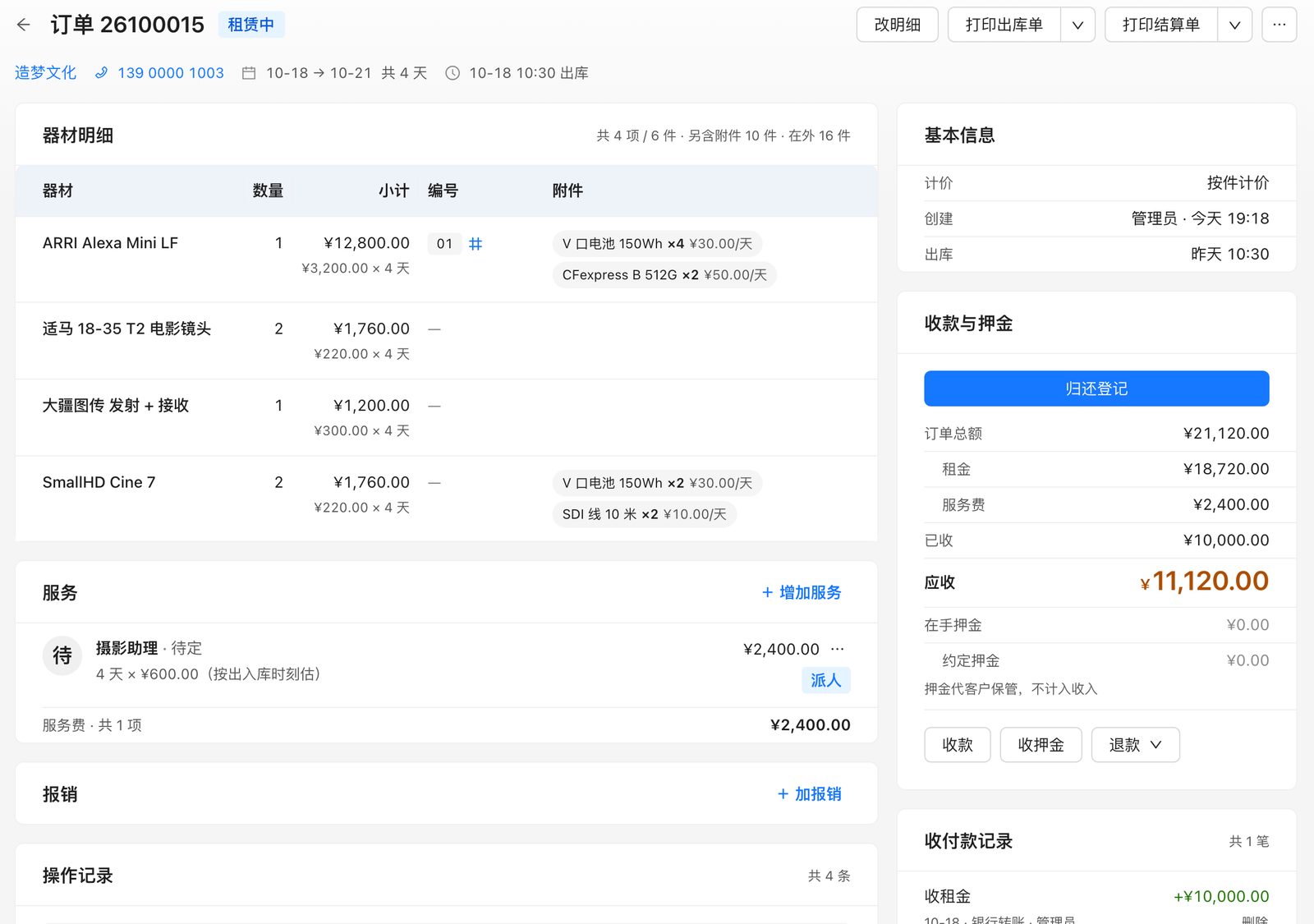
Orders → New order. Type a customer's name or phone and press Enter.
The dates row reads "start · days · end"; use the shortcuts (e.g. "Tomorrow, 3 days"). Don't know the return date yet? Choose "Not sure" to hold a few days.
Type a gear name and press Enter. The camera's batteries and cards appear underneath, and the rate follows the customer's group.
Change the quantity and accessories scale with it. If you're short, you'll see it immediately and can turn the shortfall into a sub-rental.
Save to create a booking, or "Save & check out" if they're taking it now.
Check out
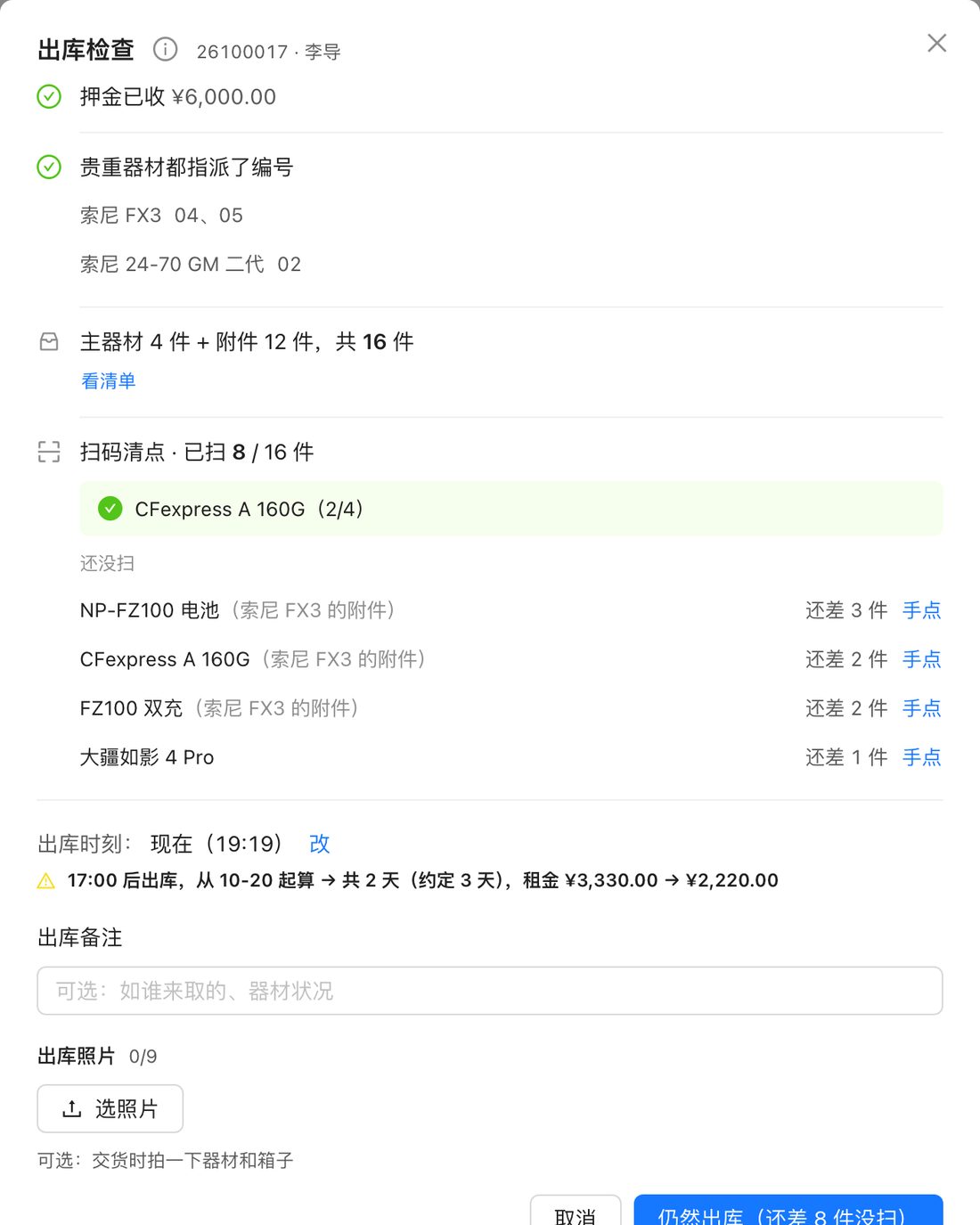
Open the order and press "Check out". The checklist shows whether the deposit is in, serials are assigned, and how many items are going.
Scan each item with a scanner or phone; the exact unit is recorded, and wrong or extra items are flagged. Unlabelled items get ticked by hand.
Check-out time defaults to now. After 17:00, billing starts the next day (you can change the cut-off).
Print the pick list or save it as an image to send to the client.
Check in
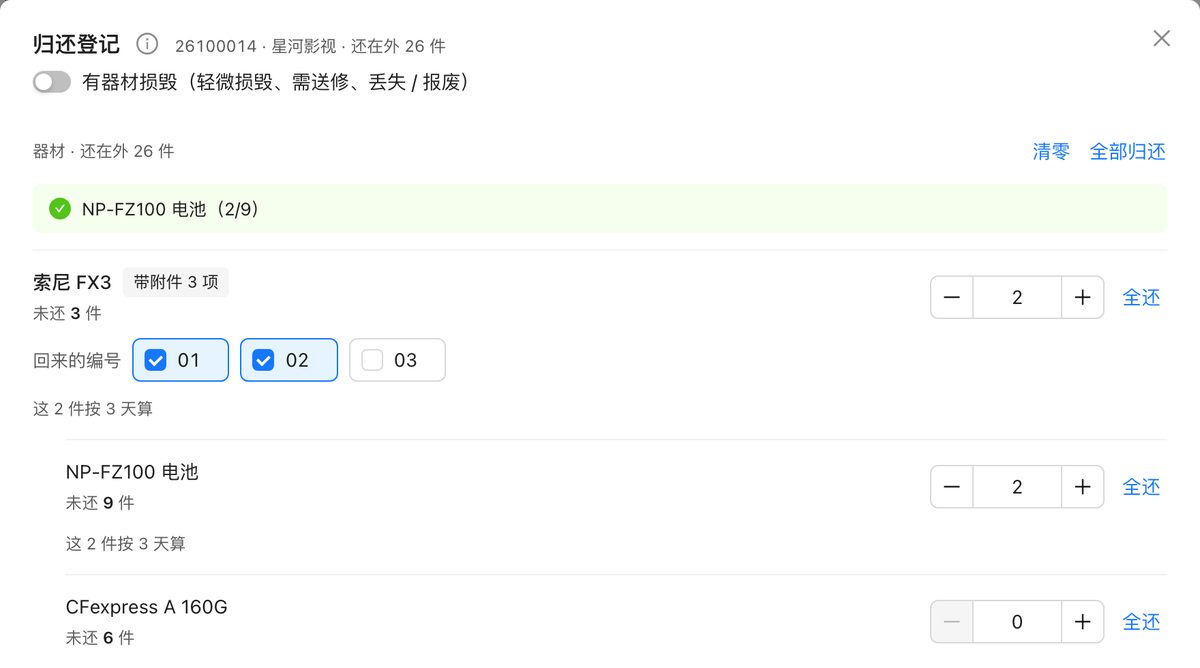
Open the order and press "Check in". Each main item has a card with its accessories; scan or enter how many came back.
Only part of it back? Confirm anyway — the order shows "Wrapping up · N left" until the rest arrives.
Damaged or lost: turn on "Damage", choose minor / needs repair / lost, add a photo and the charge (or "pending"). Repairs are tracked on the repairs page.
Accessories that were forgotten at check-out can be added under the card.
Payments & settling
Press "Collect" on the order; the amount defaults to what's owed. Deposits are taken and returned the same way, or applied to the balance.
When the gear is back, the balance is paid and the deposit returned, the order settles itself — it won't close while you're still holding a deposit.
Writing off a small remainder? Use ⋯ → Waive & settle.
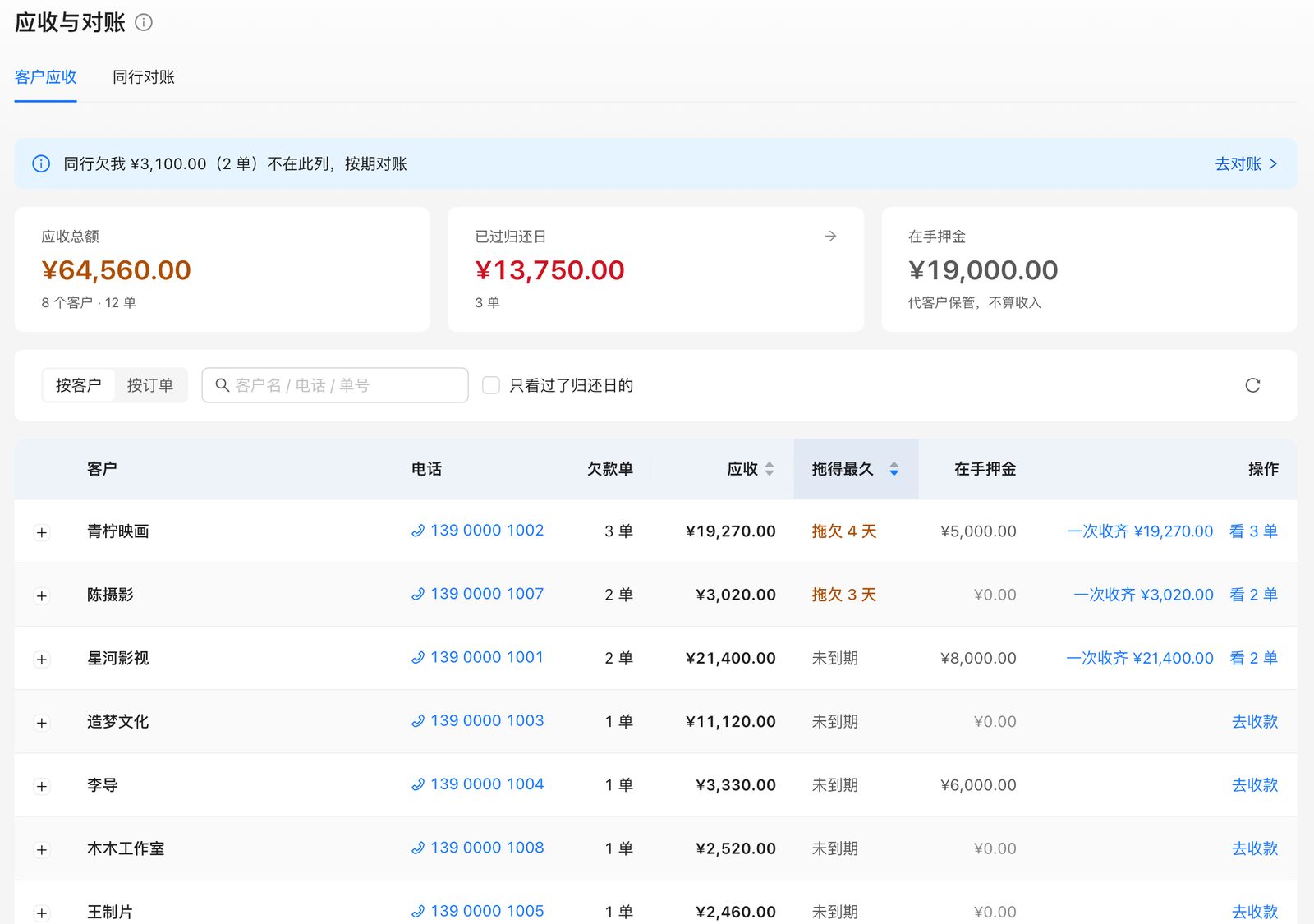
Finance → Receivables lists who owes the longest first; collect several orders at once and export a statement to Excel.
Customer pricing
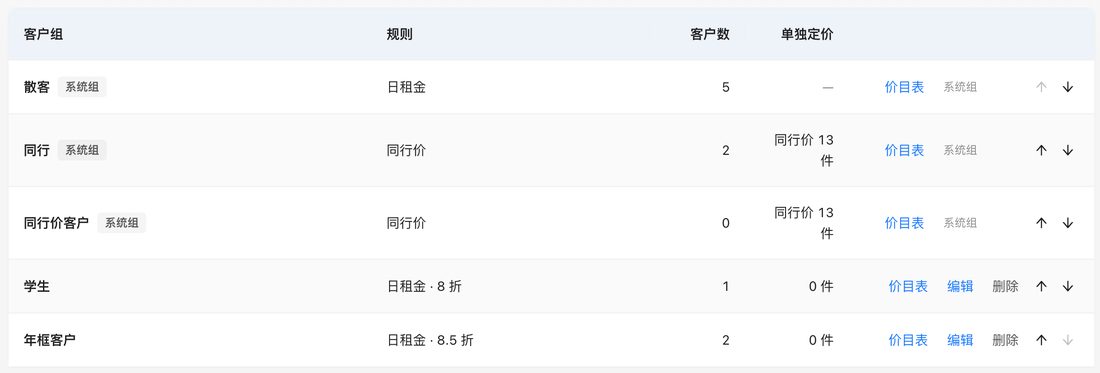
Customers → Groups: walk-in, partner and partner-rate groups come built in; add your own, like students or annual clients.
Each group has one rule — day rate or partner rate, with a discount — plus per-item overrides.
Put a customer in a group, and their orders price themselves. You can still edit any line.
Labels & scanning
Stick blank QR labels on your gear (or use the factory barcode).
In a model's serial-number list, start "Link codes": the screen names a unit, you scan its label, and it moves to the next. Batteries and cards without serials link to the model.
Scan anything on any page to see whether it's in stock or on which order.
When a pile comes back, use Orders → Scan return: scan everything and it sorts out which orders it belongs to.
Crew
On an order, "+ Add service", pick a role (e.g. camera assistant) and assign someone; the fee is billed with the order.
Assistants see the job under "My jobs" on their phone and clock in and out; overtime is calculated.
Taxi or courier costs are logged with a receipt photo, and the warehouse decides whether to bill the client.
Freelancers don't need an account — send them a one-time clock-in link. Pay everyone under Finance → Crew pay.
Accounts & roles
Owner: everything, including the books, monthly profit, partner reconciliation and payroll.
Warehouse: bookings, check-out/in, payments, chasing balances, assigning crew — without margins, sub-rental costs or wages.
Crew: only their own jobs; clock in and log expenses, no amounts or customer details.
Create accounts under Settings → Accounts with a name and phone number; people set their own password on first sign-in.